
How to Set Up Multi‑Factor Authentication (MFA) in 5 Minutes
Multi‑Factor Authentication (MFA) is one of the easiest and most effective ways to protect your accounts. It adds a second step, usually a code from your phone, that stops most unauthorised access attempts.
Here’s how to set it up quickly and safely.
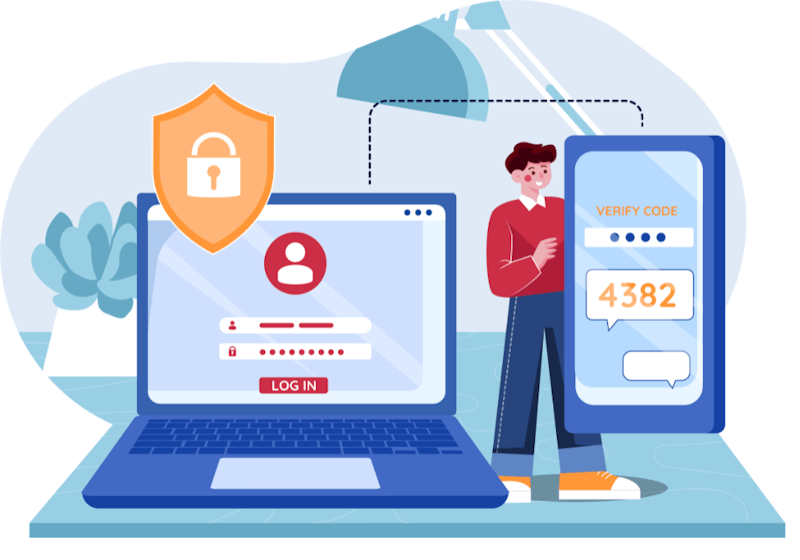
Step 1 – Install an Authenticator App
We recommend:
- Microsoft Authenticator
- Google Authenticator
- Authy
Step 2 – Log In to the Account You Want to Protect
Go to:
- Account settings
- Security settings
- Login & security
Look for Two‑Factor Authentication or Multi‑Factor Authentication.
Step 3 – Choose “Authenticator App” or Look For 2FA Options
This is more secure than SMS codes.
Step 4 – Scan the QR Code
Open your authenticator app → tap Add Account → scan the QR code.
Step 5 – Enter the 6‑Digit Code
Your app will generate a code.
Enter it to confirm setup.
Step 6 – Save Backup Codes
If backup codes are offered to you, store them somewhere safe; they will help you log in if you lose your phone.
You’re Done
Your account is now significantly more secure

F5 Solutions has been delivering refreshing
IT services and support for small-to-medium sized businesses since 2011, throughout Richmond,
Windsor, The Hawkesbury, and Greater Sydney as
well as Bathurst, Lithgow, Oberon, and Orange.
Our collective experience and industry service
began as early as 1999.
More Information
Bathurst
Blue Mountains
Central West
Hawkesbury
Lithgow
Oberon
Orange
Penrith
Western Sydney
Contact Info
Blue Mtns | Hawkesbury | Sydney West
PH: 02 4572 2206
Bathurst | Lithgow | Oberon | Orange
PH: 02 6308 9669
Email: hello@f5solutions.com.au
Office Hours: Mon-Fri, 8AM-6PM
(Weekends / After Hours by Appointment)
© 2026 F5 Solutions Pty. Limited ABN 89 153 991 765